Translate WordPress Themes and Plugins
Poedit Pro comes with dedicated support for translating WordPress themes and plugins. It provides a streamlined workflow that handles WordPress-specific details for you, and doesn’t require you to have deep understanding of how WordPress translations work under the hood.
To start, open Poedit and choose Translate WordPress theme or plugin. You’ll now be presented with two options to access your theme or plugin:
-
Connect to your WP server — Poedit directly accesses your live site and automatically puts translations in the right place. This is best if you want to translate a theme or plugin on your site.
-
Translate WordPress files locally — This is best for developers who work on their plugins or themes, but can also be used instead of the first option e.g. if you need to work offline or have difficulty connecting.
Connect to Server
Section titled “Connect to Server”Poedit can access your WordPress site via SFTP or FTP protocols. Poedit automatically detects the location of translation files on your server and you don’t usually need to configure anything manually.
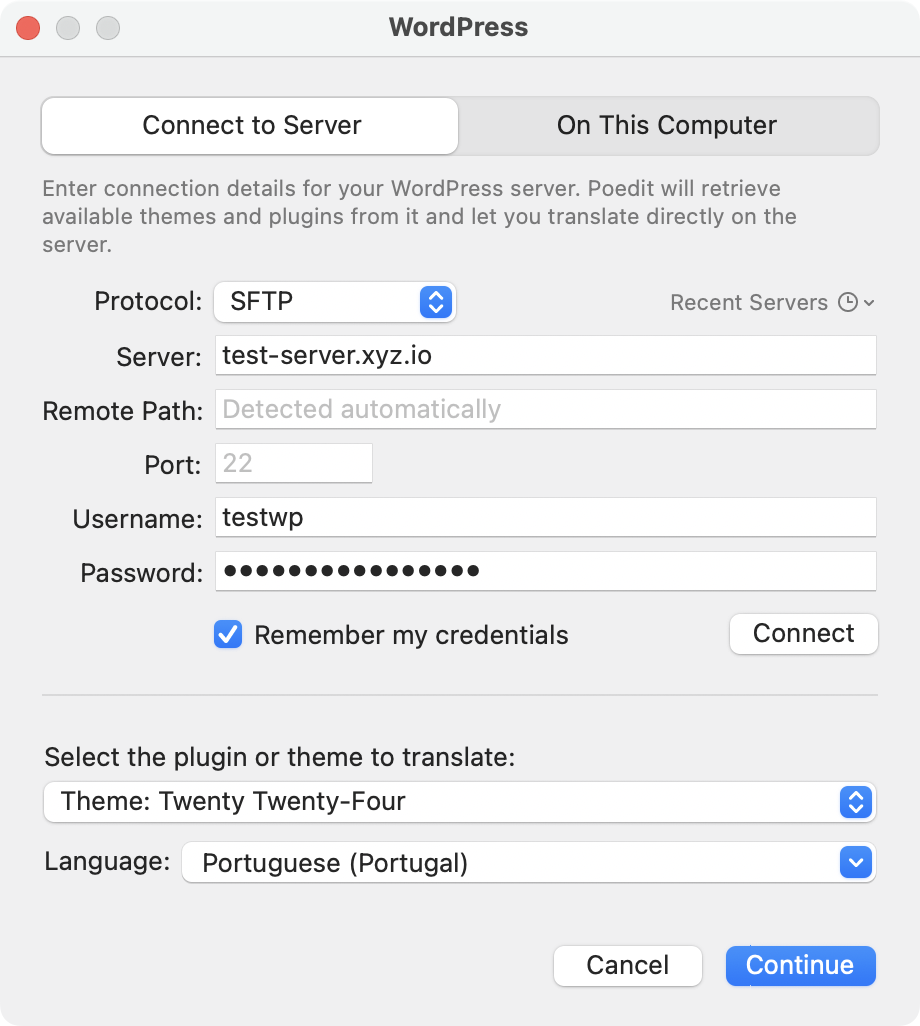
To connect to your server:
-
Enter connection details in the window. These should be the same details you use to connect to your server via an FTP client. If you’re unsure about these, check with your hosting provider or site administrator.
The fields are:
- Protocol: Choose between SFTP (recommended) or FTP.
- Server: The hostname of your server (e.g.
ftp.example.com). - Remote Path: The path to your WordPress installation on the server (e.g.
/www). Poedit can normally detect this automatically, but you may need to enter it manually if you have a non-standard setup. - Port: Port to connect to (you usually don’t need to change this)
- Username: Your FTP username.
- Password: Your FTP password.
If you check the Remember my credentials box, Poedit will save your connection details for future use. You can have multiple connections saved if you work with multiple sites and access them via the Recent Servers dropdown.
-
Click the Connect button.
-
Once Poedit connects to your server, it populates the list of available themes and plugins. Pick the one that you want to translate.
-
Select the language you want to translate into.
-
Click Continue.
Poedit will now analyze the theme or plugin and will create a translation file for you.
Now translate the file as you would with any other translation file. Automatic pre-translation is often very useful here to quickly fill in common strings and machine-translated candidates, especially for popular themes and plugins.
When you save the translation, using File → Save or Ctrl+S / Cmd+S, Poedit automatically uploads the translation file to your your server. You can then see the changes live on your site.
Translate WP files locally
Section titled “Translate WP files locally”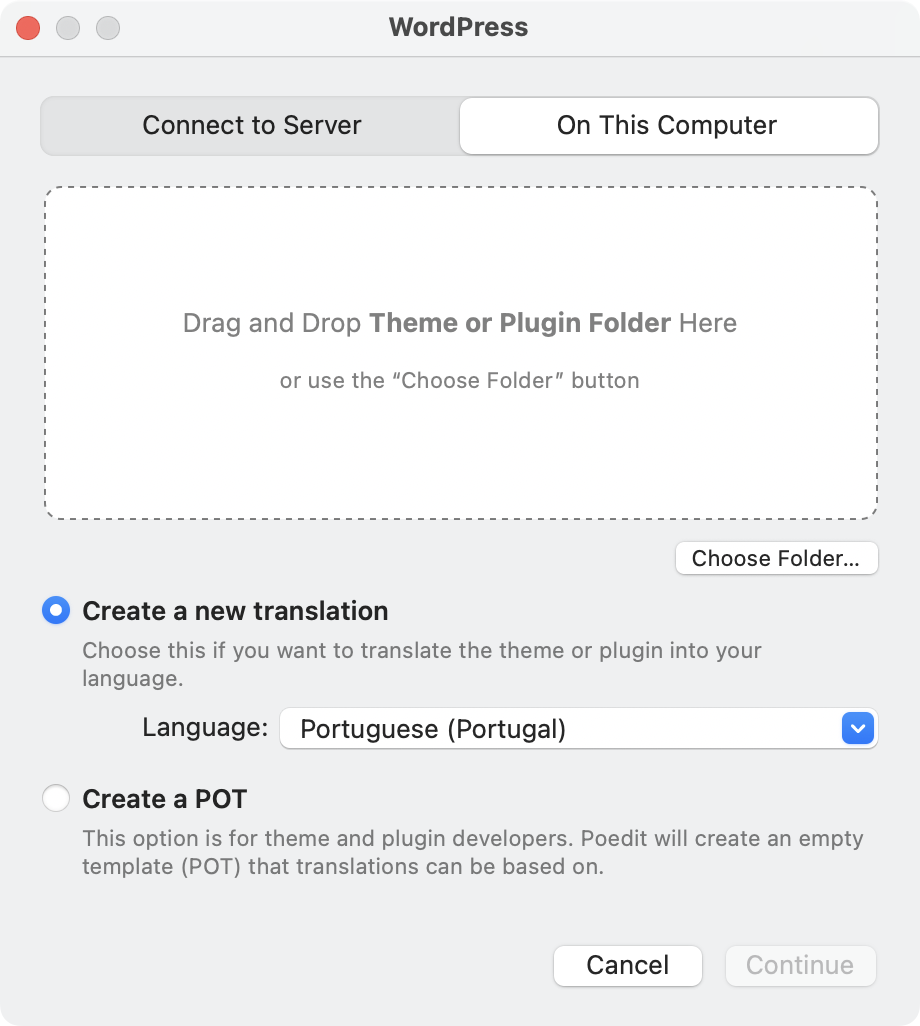
-
Choose the folder of your theme or plugin.
-
If you’re site owner and want to translate a theme or plugin on your site, choose Create a new translation and select the language.
If you’re a developer working on your own plugin or theme, it is recommended to create a POT file first, which serves as a template for translations, and create translation files from it later. To do this, choose Create a POT.
-
Click Continue.
Poedit will now analyze the theme or plugin and will create a translation file or POT file for you.
Now translate the file as you would with any other translation file. Automatic pre-translation is often very useful here to quickly fill in common strings and machine-translated candidates, especially for popular themes and plugins.
When you save the translation file, Poedit will pre-fill the correct filename and location. It’s important not to change them and if copying the translations manually to the server, to copy all the created files to the exact same location.
Updating translations
Section titled “Updating translations”It’s common to need to update your translations after a theme or plugin changes. This is easily done in Poedit:
Updating translations on the server
Section titled “Updating translations on the server”Connect to the server again using the steps described above. Poedit will open the existing translation, detect changes and refresh the translation from the currently installed version of the theme or plugin.
Updating a local translation
Section titled “Updating a local translation”Open the existing PO file you created earlier (as a normal file). Then use Translation -> Update from Source Code to rescan the updated theme/plugin folder and add any new or changed strings. If you replaced the theme/plugin folder, make sure the PO file is placed in the updated copy in the same location as before.
Technical notes
Section titled “Technical notes”Supported translation files
Section titled “Supported translation files”Poedit automatically compiles the translation into the formats needed by WordPress, depending on the content of the translation file:
- Classic gettext compiled files (
.mo). - Performant Translations: PHP-based translation files introduced in WordPress 6.5 (
.l10n.php). - JSON translation files for JavaScript translations (including Gutenberg/block editor). These are generated only when the project contains translatable strings in JavaScript code.
Plugin and theme requirements
Section titled “Plugin and theme requirements”Poedit expects, as WordPress does, themes and plugins to have standard Text Domain and Domain Path headers in their main file. If these are missing, Poedit will try its best to determine them using multiple heuristics. If you encounter an issue with Poedit showing an error about the plugin/theme not appearing as localization-ready, adding these headers will help.