Translating Files in Poedit
Poedit is a file editor for translations. You open a translation file, edit its contents, and save it again, just like you would with a document editor. The difference is that translation files are structured: much like a spreadsheet is shown as rows and cells, Poedit shows the file as smaller entries to translate, called strings.
Understand the screen
Section titled “Understand the screen”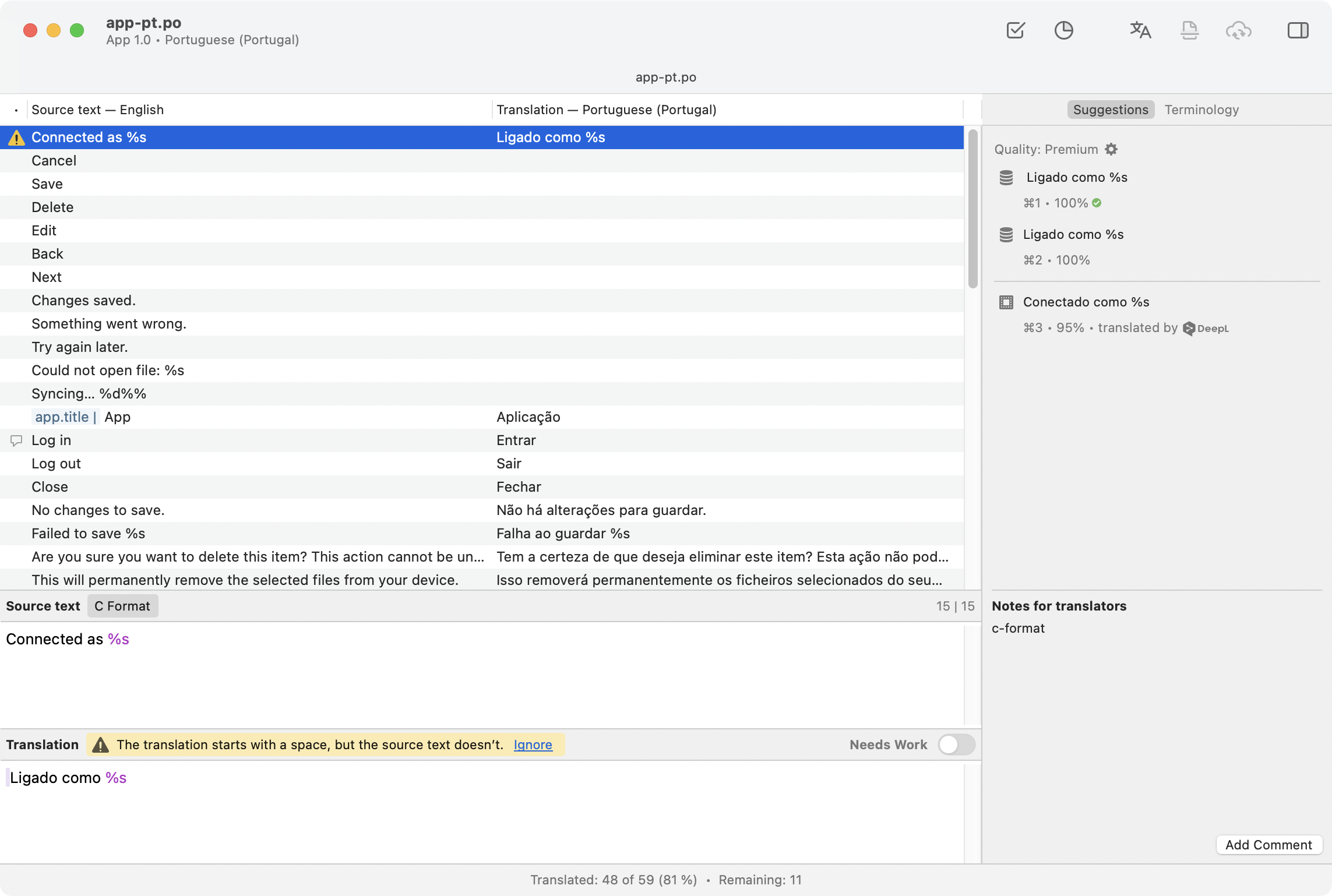
Poedit’s main window is organized into three areas:
- The string list shows all entries in the file and is used for navigation and overview.
- The editing area at the bottom is where you do the translation work on the selected string.
- The sidebar shows additional tools and context.
The list of strings
Section titled “The list of strings”In the main area, Poedit shows a list of strings in the file. Use it to select the string you want to translate or review.
A string (sometimes called a segment) is a piece of text intended for users that’s handled as one unit for translation and stored as a single entry in the translation file. It can be anything from a short label to a longer message or a short paragraph.
The list has multiple columns:
- The Source text column shows the original text. In some files, this may show keys or IDs instead; see Symbolic IDs for details.
- The Translation column shows your translation (which may be empty or partial).
Icons on the left indicate status, such as errors, possible quality issues, or additional content like comments. Additionally, the rows are color-coded: red indicates serious errors, while orange marks strings that need further work.
The editing area
Section titled “The editing area”When you click a string in the list, its details appear in the editing area at the bottom of the window:
- The source text is shown first, so you can see the full text you’re translating.
- The translation field below it is where you enter or edit the translation.
- Extra information for the selected string, such as context, translator notes, comments, or validation messages, may appear near these fields or in the bottom part of the sidebar.
Sidebar
Section titled “Sidebar”The sidebar contains supporting tools and information, such as translation suggestions, terminology, translator notes, and comments. What appears there depends on the file format and the information available.
Suggestions may come from translation memory or machine translation. You can insert a suggestion and edit it if needed. For using these sources in bulk, see Pre-translation.
Editing translations
Section titled “Editing translations”To edit a translation file, iterate through the strings and translate them one by one:
- Select a string.
- Read the source text, and when needed, any context or notes.
- Type the translation, or insert a suggestion from the sidebar and edit it.
- Move to the next untranslated or unfinished string.
- Mark uncertain translations as Needs Work.
For larger files, you can automatically pre-translate in bulk first.
If a string shouldn’t be translated and should match the source (for example, technical terms or product names), use Edit → Copy from Source Text to fill the translation with the original text.
Understanding context
Section titled “Understanding context”Sometimes, the correct translation isn’t clear from the source text alone. In such cases, additional information can help you understand the intended meaning and choose the right translation. This information may include:
- Context is a short label that helps distinguish identical source text used in different places.
- Notes for translators are developer-provided comments explaining how the text is used or giving translation instructions.
- Source references, when available, show where the string appears in the source code (and can be accessed by right-clicking the string in the list).
Using Needs Work
Section titled “Using Needs Work”You don’t always finalize a translation on the first pass. You can mark a string with the Needs Work toggle in the editing area to revisit it later for entries that aren’t ready to be used yet, such as translations you’re unsure about or strings that came from pre-translation and still need review. Entries marked as Needs Work are treated as not final and typically won’t be used in your project until you clear the flag.
Spotting and correcting issues
Section titled “Spotting and correcting issues”Some strings contain placeholders, HTML tags, or other special formatting that must stay valid in the translation. Poedit highlights special-meaning characters where it can and reports missing or changed placeholders during validation.
It can also report other common issues, such as mismatched punctuation or whitespace. These checks can be configured in View → Customize Warnings…
Validation runs automatically when saving files. You can also run it manually at any time by clicking Validate in the toolbar or using Translation → Validate Translations. Afterwards, strings with issues are indicated in the list with a yellow warning icon or, for serious errors that prevent the file from being used, as a red row:
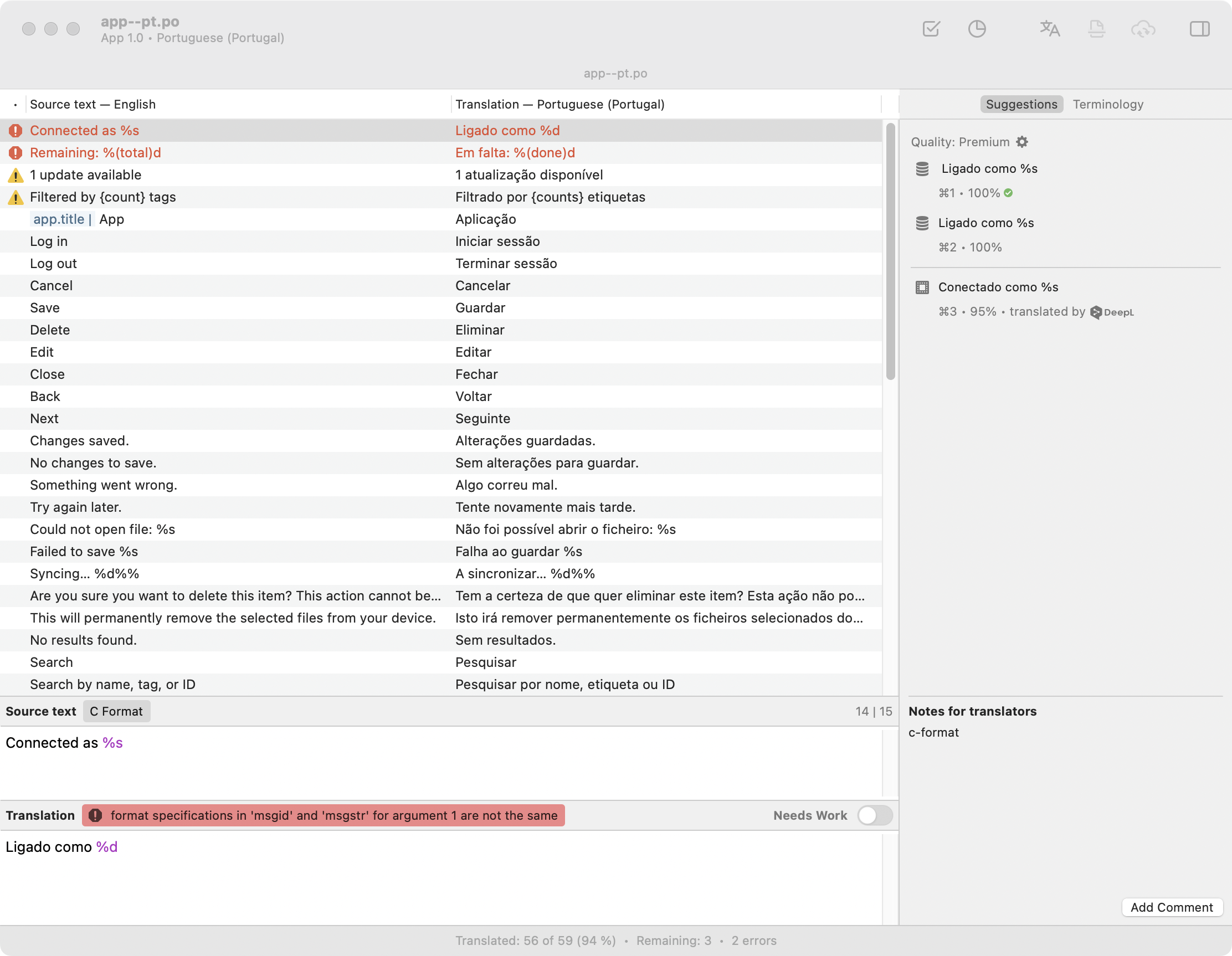
Edit the translations to fix the indicated issues and re-run validation.