How To Translate JSON Files: A Complete Guide
JSON files power most modern i18n setups. If your stack includes React, Vue, Angular, or Node.js, you have probably seen files like en.json or locales/en/common.json sitting in your project.
Translating them sounds mechanical. Copy the file, swap the values, done. But there are a few ways this breaks silently, and when it does, your app either shows nothing, renders broken strings, or falls back to English with no error to tell you why.
This guide covers how to translate JSON files correctly, what to watch for across frameworks, and which JSON translation tools actually make the job reliable.
Understanding JSON i18n
JSON does not have an official localization standard. Every i18n library made its own rules for key structure, interpolation syntax, and plural handling. For example, these are the types of placeholders for JSON:
1 | { "key": "Welcome, {name}" } |
The same goes for pluralization, with each library having a different syntax:
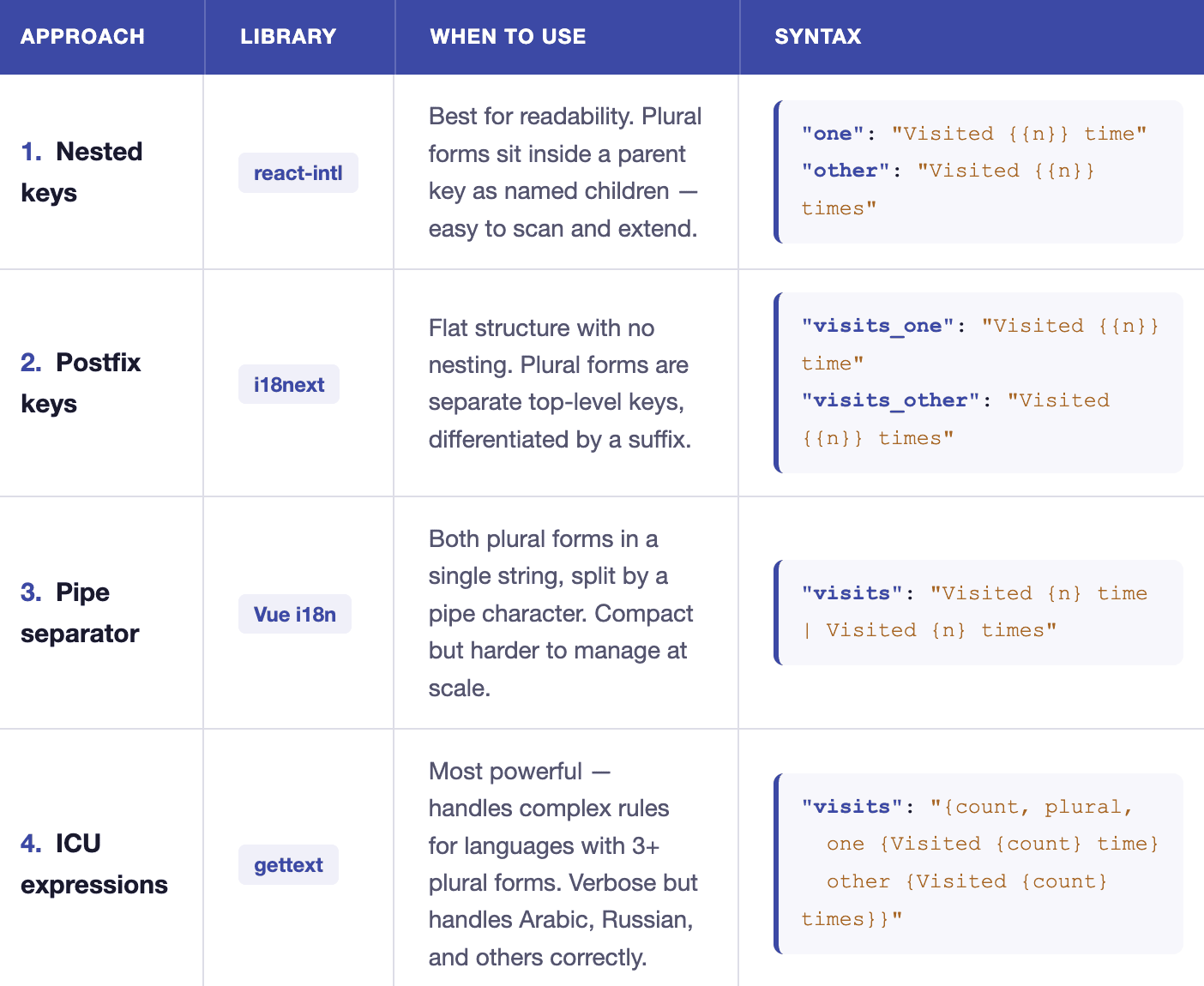
Due to this complexity, JSON i18n can get messy without a dedicated editor. That’s exactly what Poedit is built for.
Poedit is a dedicated translation editor that supports JSON natively alongside PO/gettext, XLIFF, Qt .ts, and Flutter ARB. It addresses all the technical complexities of JSON i18n behind the scenes so translators can focus on what they do best: translating.
For JSON i18n specifically, Poedit has:
- JSON parsing. It handles both flat and nested JSON without any manual reformatting. Keys are parsed correctly regardless of nesting depth.
- Placeholder checks. Variables like
{{name}}and{count}are highlighted and checked for mismatches. - Translation memory. Poedit stores every previously translated string. Repeated or similar strings get instant suggestions, which significantly cut time on large files.
- Advanced pre-translation. Poedit can use translation memory and supported machine translation services to pre-fill untranslated strings.
- Clean file output. Writes back a well-formed JSON file with the original key structure preserved.
How To Translate & Edit JSON Files With Poedit
Here’s how the JSON translation flow looks like:
- Export your en.json. Assuming that your original language is English, this is your original source of truth.
- Create a new language file for each target language. Next, you need to duplicate that
en.jsonand rename it to[language-n].jsonfor every target language you have.
Let’s say you want to translate the source file to French and Chinese:
1 | /locales |
Now you have the files, it’s time to translate. Let’s open Poedit.
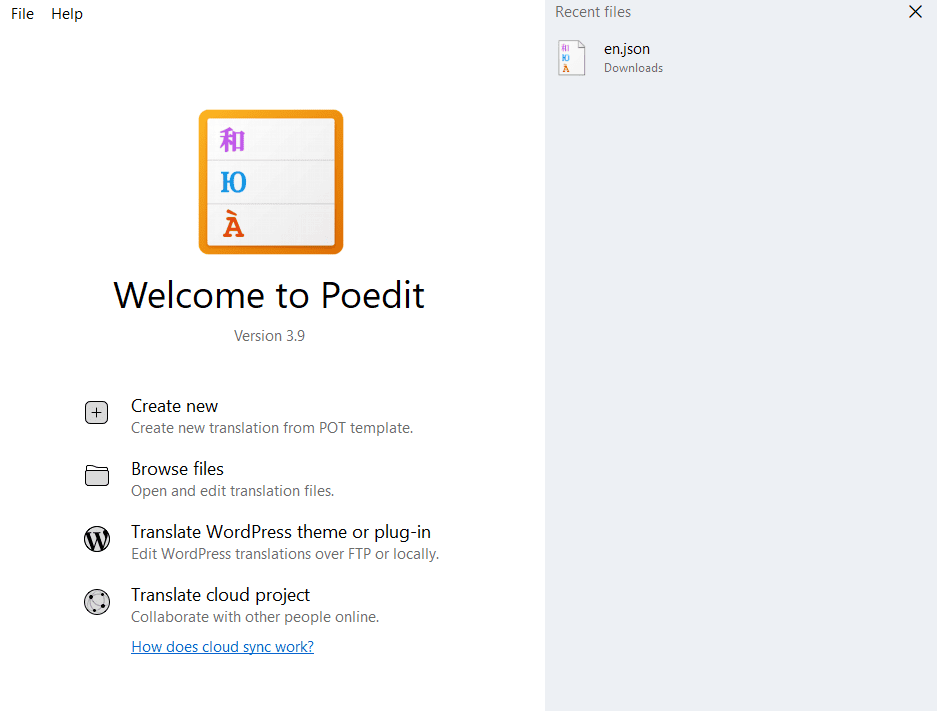
Step 1. Load the file
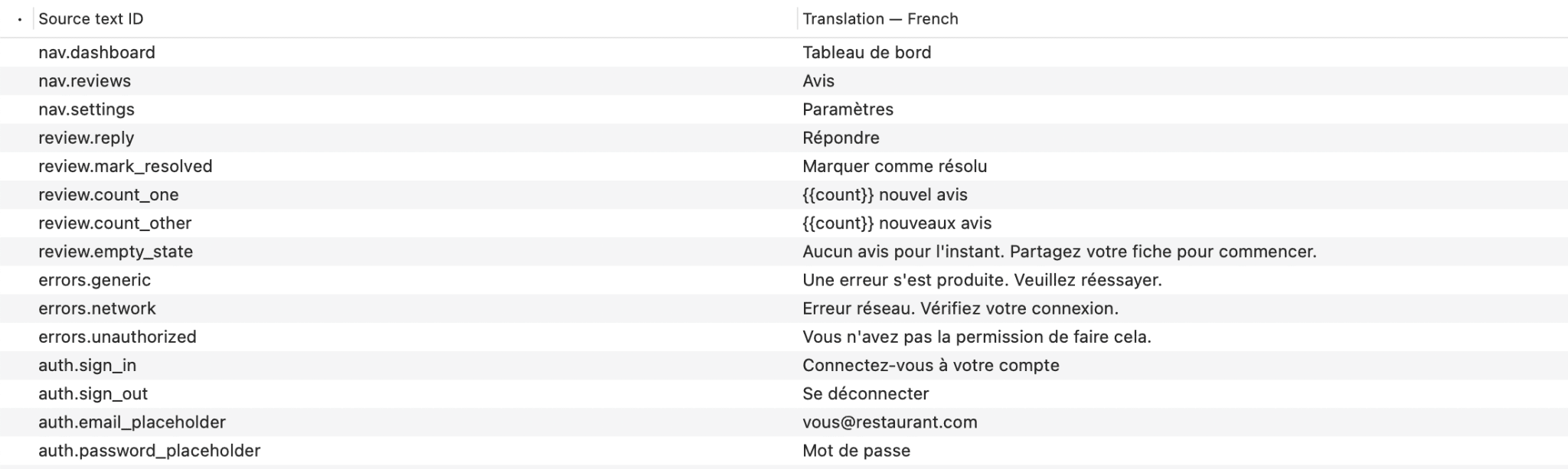
Simply open your JSON file (the image below is from the fr.json). Poedit parses the JSON structure automatically, with the left column showing each source string, and the right column is where you fill in the translation.
Sometimes the file contains only the IDs, like this:
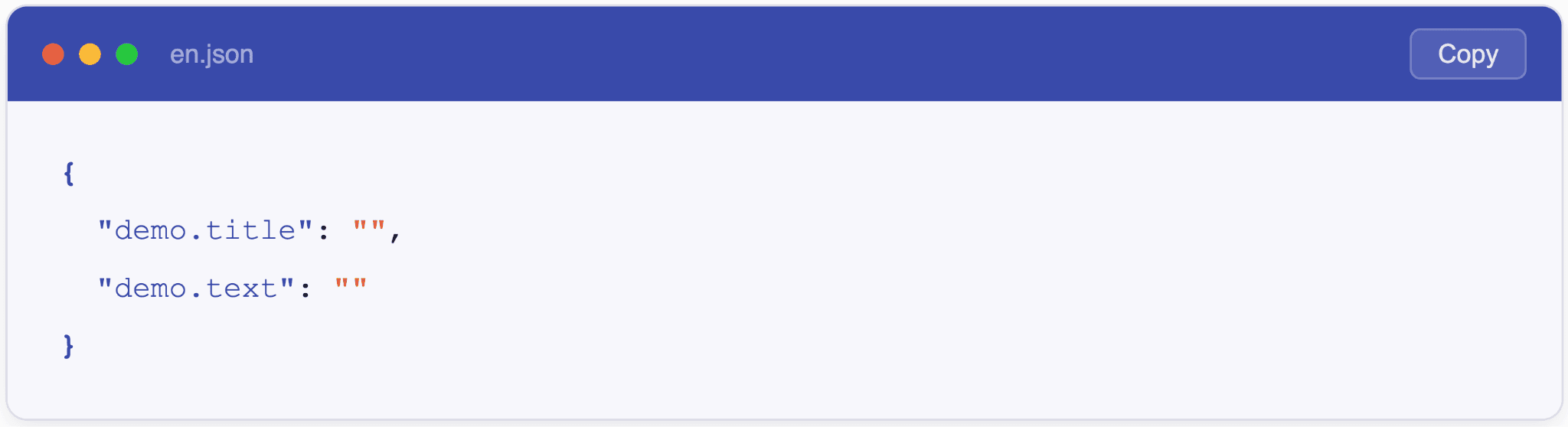
This happens because some development teams separate the act of writing code from the act of writing copy (which is the job of the copywriter). Rather than leave the values blank and break the UI, the app falls back to displaying the key itself. Therefore, dashboard.welcome renders as “dashboard.welcome” in the browser until a real string is loaded.
In that case, Poedit looks for a matching source file by swapping the language code in the filename. If your file is messages.fr.json, it automatically checks for messages.en.json. If found, a green banner appears for you to accept that file.
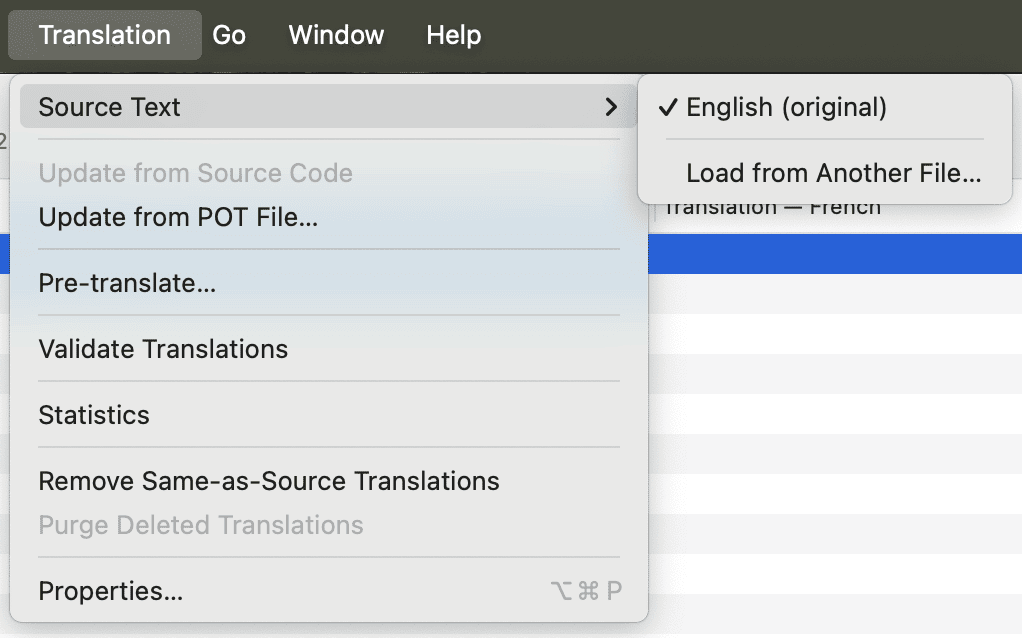
If no match is found automatically, go to Translation > Source Text > Load from Another File and pick the English file manually. Once loaded, the left column flips from IDs to readable strings and pre-translation becomes available.
Step 2. Pre-translate and translate
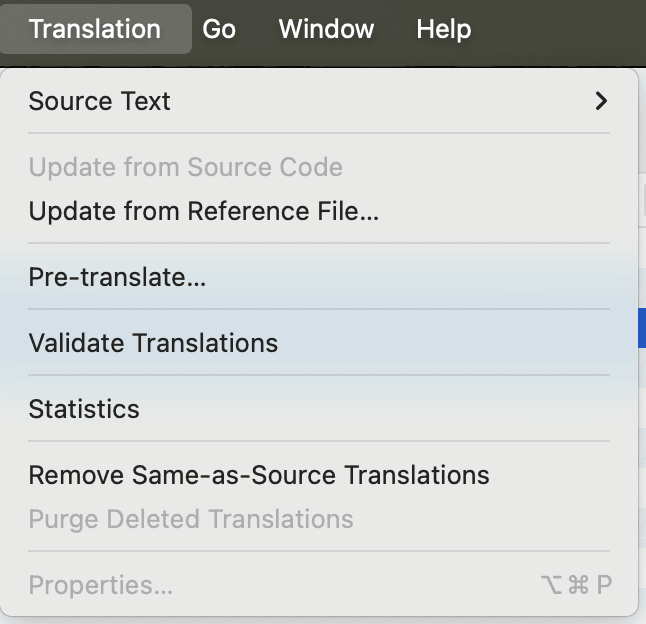
Next, run Translation > Pre-translate and Poedit can pull from translation memory to instantly translate strings that appeared in previous projects. For the rest, simply translate them manually by clicking each entry and typing your translation in the bottom pane.
Poedit’s advanced pre-translation can combine translation memory with supported machine translation services to process untranslated entries quickly.
Step 3. Review flagged issues
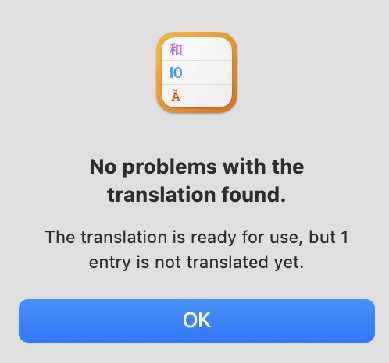
Finally, go to Translation → Validate Translations and Poedit checks translated entries for issues such as missing placeholders, inconsistent punctuation, or suspicious length differences.
Step 4. Save the file
Finally, save the file. Poedit writes translations back with keys untouched, nesting preserved, and only values populated. Drop the file in your locale folder and confirm the app loads it.
3 More Tools for JSON File Translation
1. Lokalise
Lokalise is a cloud TMS built for teams that need JSON localization at scale. It parses flat, nested, and structured JSON natively, handles ICU plurals, and masks interpolation placeholders as protected blocks. GitHub, GitLab, and Figma integrations are all included out of the box.
- Standout features: nested and flat JSON support across i18next, react-intl, and vue-i18n; ICU MessageFormat plural handling; placeholder protection; GitHub, GitLab, and Figma integrations
- Pros: handles the complex JSON structures without manual workarounds; continuous localization workflows fit directly into existing CI/CD pipelines
- Cons: per-seat pricing adds up quickly for larger teams; more setup overhead than a desktop editor for solo developers or small projects.
2. Crowdin
Crowdin is a cloud localization platform with broad JSON support across i18next, react-intl, and vue-i18n formats. Translation memory, machine translation, and CI/CD integrations are all built in. The open-source plan supports public repositories at no cost, which makes it a popular choice for open-source frontend projects.
- Standout features: JSON support across major i18n frameworks; translation memory and machine translation; GitHub, GitLab, and Bitbucket integrations; in-context localization for web apps; contributor management and review workflows.
- Pros: free open-source plan is genuinely useful for public repositories; version control integrations keep translation files in sync automatically; scales well from small teams to large engineering organizations.
- Cons: pricing becomes significant for private projects at volume; some advanced features require higher-tier plans.
3. SimpleLocalize
SimpleLocalize is a lighter TMS aimed at smaller teams and solo developers. It has a free community tier, an online JSON editor, and a CLI for uploading and downloading files. Auto-translation is built in. It is a reasonable option for projects that want a hosted editor without committing to enterprise pricing.
- Standout features: online JSON editor with flat and nested key support; CLI for file upload and download automation; auto-translation via machine translation engines; translation memory; free community plan.
- Pros: faster to set up than enterprise platforms; free tier is workable for small projects with limited string counts; CLI makes it easy to wire into a basic build pipeline.
- Cons: less mature than Lokalise or Crowdin for complex JSON structures; ICU MessageFormat support is more limited compared to larger platforms.