How To Translate Qt .ts Files: A Step-by-Step Guide
Qt applications store translatable strings in .ts files, generated by lupdate from your C++, QML, or Qt source code. If you have files like app_fr.ts or myapp_de.ts in your project, this guide is for you.
Translating .ts files correctly means understanding one thing most guides skip: the file you edit is not what the app loads. Qt reads compiled .qm binaries. Finish the .ts and forget to run lrelease, and nothing changes in the app.
This guide covers the full pipeline, the right tools, and the mistakes that break Qt translations silently.
The Qt Translation Pipeline
Before working on any file, it is important to understand the context.
| Stage | Tool | What It Does |
|---|---|---|
| Mark strings | Manual: tr() or qsTr() |
Flags text in your source code for extraction |
| Extract strings | lupdate |
Reads your source and produces .ts XML files |
| Translate | Poedit or Qt Linguist | Translator fills in the translation elements |
| Compile | lrelease |
Converts .ts into the binary .qm the app loads |
| Load at runtime | QTranslator in your code |
App reads the .qm and applies translations |
The .ts file is the editable source. The .qm file is the file that is run. Knowing the difference is what is most important in this workflow.
How To Translate Qt .ts Files
1. Mark strings for translation
Strings not wrapped in tr() in C++ or qsTr() in QML are invisible to lupdate. They cannot be translated. Check your source before running anything. A surprising number of strings go missing because this step was skipped.
2. Run lupdate to generate .ts files
lupdate scans your source and generates the .ts XML file. Run it from the command line pointing at your project file and listing the .ts files you want to create or update.
- If the file already exists,
lupdateupdates it: - New strings get added as
type="unfinished" - Strings removed from source get marked
type="obsolete" - Existing translations are preserved
If the file does not exist yet, it gets created.
3. Translate the .ts file
Use a tool that understands Qt .ts structure. Translating it as plain text leads to exactly the silent failures described above. This is the step the rest of this guide focuses on.
4. Compile .ts to .qm with lrelease
This is the most forgotten step. Run lrelease after every change to any .ts file, not just the first time. If you edit app_fr.ts and skip lrelease, the app loads the old .qm and nothing changes. You end up debugging a problem that does not exist in the code.
5. Load the .qm at runtime
Use QTranslator to load the .qm file at startup. Make sure:
- The path to the
.qmis correct - The locale name matches the filename
installTranslatoris called before any UI is created
How To Translate & Edit .ts Files With Poedit

Poedit is one of the most widely used desktop editors for software translation, best known as the original PO and POT file editor and trusted by translators and developers for over two decades. It also opens Qt .ts files directly, giving translators a focused editing interface instead of making them work in Qt’s developer-oriented tooling.
Alongside PO and POT, Poedit also offers native support for Qt .ts files, JSON, XLIFF, and Flutter ARB. It handles Qt’s XML structure, placeholders, plurals, and translation states without you touching the underlying markup.
Here’s how you translate Qt .ts files with Poedit:
Step 1. Open the .ts file
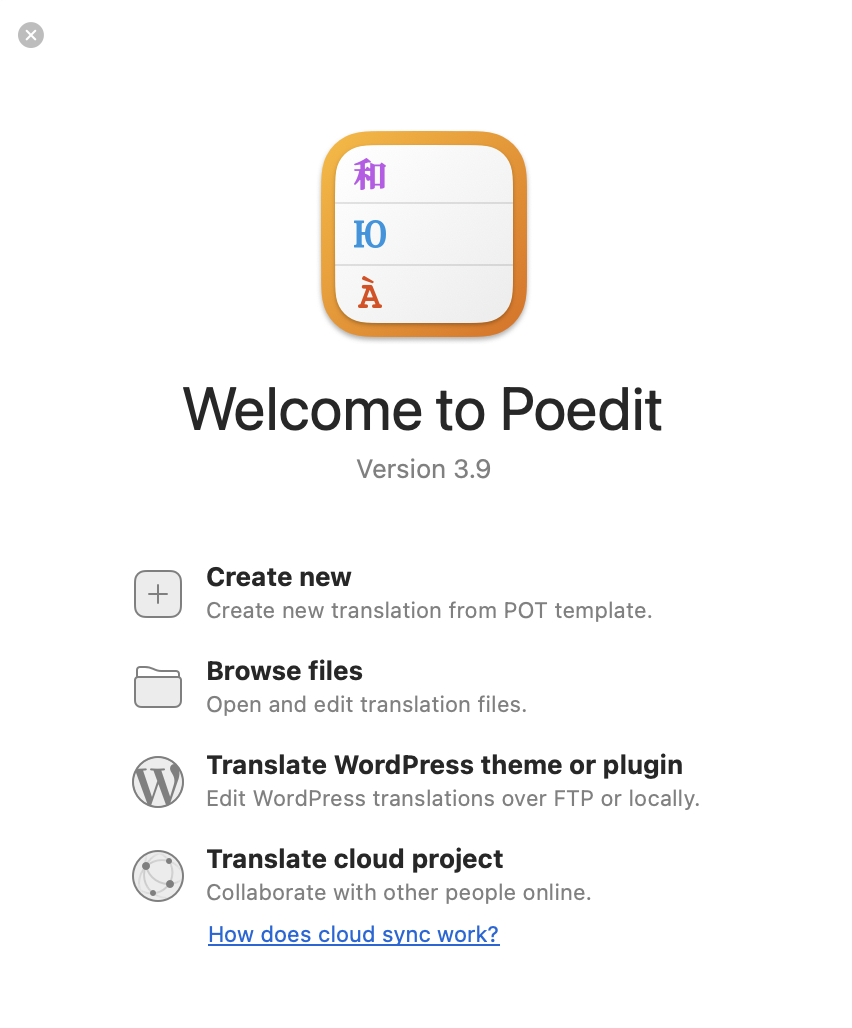
Here I have a Qt .ts file named app_fr.ts. I’ll simply open it, and Poedit automatically parses the Qt XML and shows the source English text on the left with a translation field on the right. The source element is read-only.

Poedit is built for fast translation work: keyboard-friendly editing, clear source and translation fields, automatic handling of Qt-specific details, and advanced pre-translation support using translation memory and supported machine translation services. You can accept good suggestions quickly, refine terminology or tone where needed, and validate placeholders, plurals, unfinished entries, and other issues before saving the .ts file.
Step 2. Review the translation
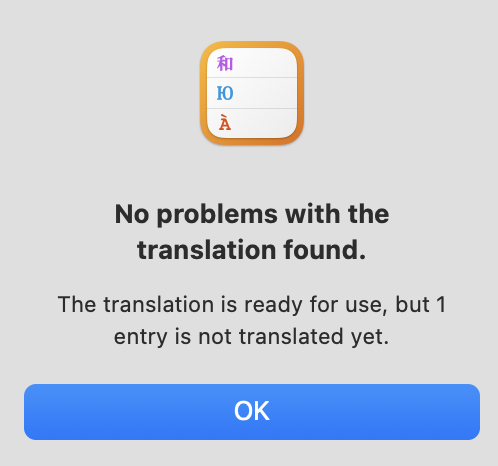
Once you’re done with the translation, go to Translation → Validate Translations and Poedit checks translated entries for issues such as broken placeholders, missing plural forms, or inconsistent punctuation.
Step 3. Save the file
All done, now just save the file. Poedit writes your translations into the translation elements in the XML, preserves source text and context elements untouched, and automatically removes type="unfinished" from completed entries. The file is ready for lrelease.
Run lrelease to compile the .qm. Drop the file in the expected location and run the app to confirm translations display correctly.
If they don’t display correctly, check the file path, the locale identifier, and whether installTranslator is being called before the UI is created.
Step 4. Sync new changes
When developers add or rename strings, rerun lupdate and open the updated .ts file in Poedit. All existing translations carry forward automatically. Only new and changed entries need attention.
More Tools for Qt .ts File Translation
Qt Linguist
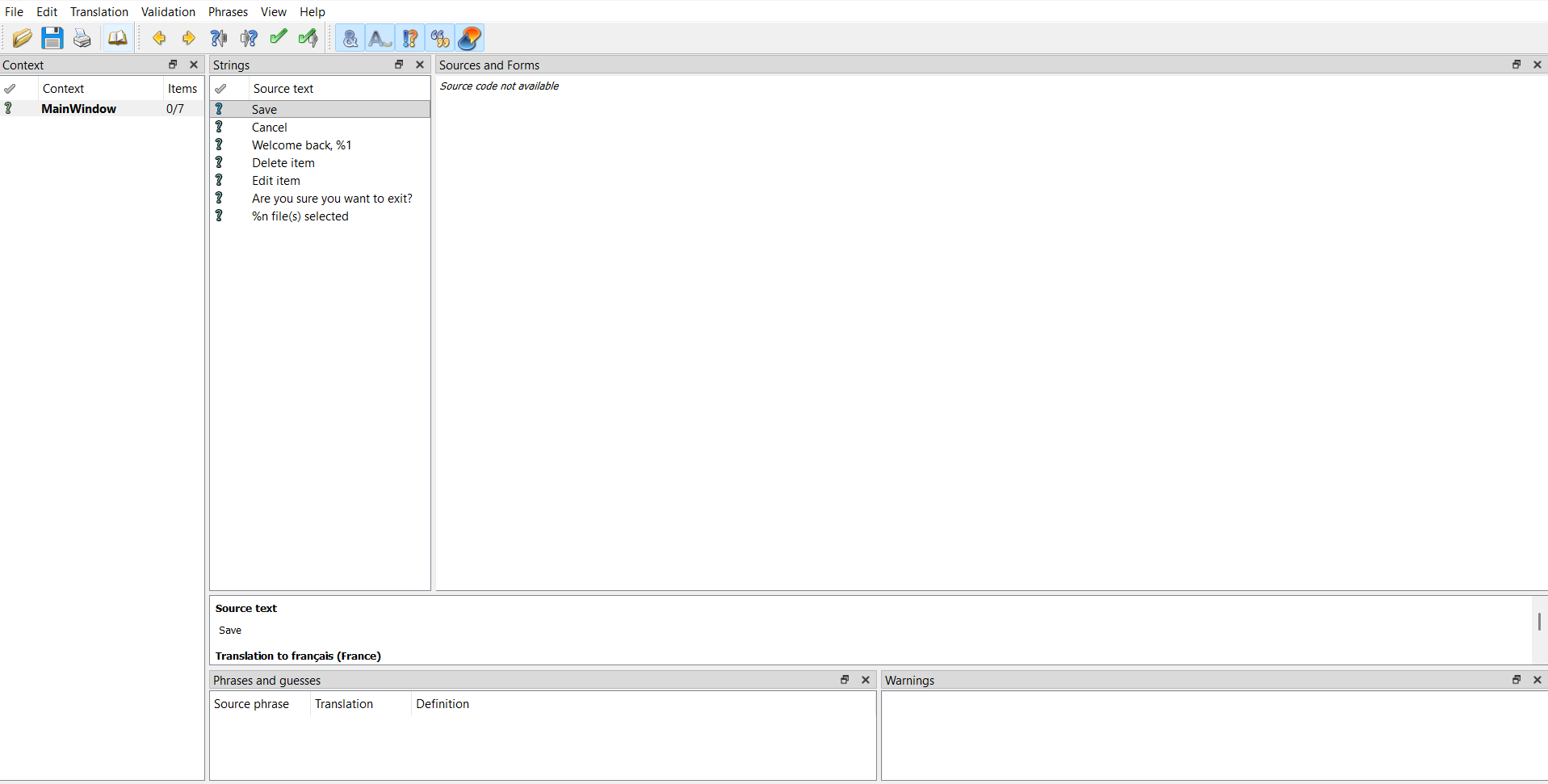
Qt Linguist is the Qt .ts editor that ships with the Qt framework. It is purpose-built for .ts files, understands the XML format completely, and handles placeholders and plural forms per locale without any additional setup. For solo developers or embedded software engineers doing a first translation, it is the zero-friction starting point.
- Standout features: native Qt
.tsfile support; placeholder protection for%1,%2, and%n; plural form handling per locale; translation state tracking (unfinished,obsolete,finished); free and bundled with Qt. - Pros: zero setup if you already have the Qt framework installed; understands Qt’s XML structure better than any third-party tool; reliable for straightforward translation jobs on smaller projects.
- Cons: no full translation memory; no collaboration features for teams; interface is dated compared to modern alternatives and remains closely tied to Qt’s developer workflow.
Crowdin

Crowdin is a cloud translation management system with Qt .ts support, translation memory, machine translation, Git integration, and project management features.
Use a translation management system when the translation process itself becomes the hard part: many languages, multiple translators, continuous source updates, approvals, or repository automation. For a single .ts file or a local desktop workflow, a focused editor such as Poedit is usually much lighter.